How to use Jira for project management: pros, cons, and expert tips from our PM team

Jira software has been the default project management tool for software teams for over two decades. Originally built for issue tracking and bug tracking, it has since become the tool most Agile software teams reach for first and one of the most frequently employed solutions in software development.
And yet, if you ask a room full of project managers about it, you'll get a mixed bag of reactions. Some praise its built-in support for Agile workflows. Others groan about it being too finicky and cluttered. This “love-hate” relationship has almost become a rite of passage for teams who adopt it. The truth is, the mileage varies depending on your team's unique workflow, how you configure it, and whether the project management process behind it is clearly defined.
Planyway's project management team has been using Jira for years across different team setups. Here's what we've learned about making it actually work.
TL;DR
- Jira's real value isn't the tool itself, but the discipline it forces. Teams that maintain clean workflows and consistent data get visibility; teams that don't, just get a more complicated spreadsheet.
- The most dangerous Jira configurations aren't the broken ones. They're the ones that look detailed and thorough but do not reflect how work actually moves.
- Premium features solve some gaps, but not the ones that matter most day-to-day: who's overloaded, what's blocking a release, and how to explain project status to someone who doesn't live in Jira.
What is Jira Agile project management?
Jira Agile project management is the practice of using Jira's built-in boards, backlogs, sprints, and workflows to plan, track, and deliver work using Agile methodologies like Scrum or Kanban.
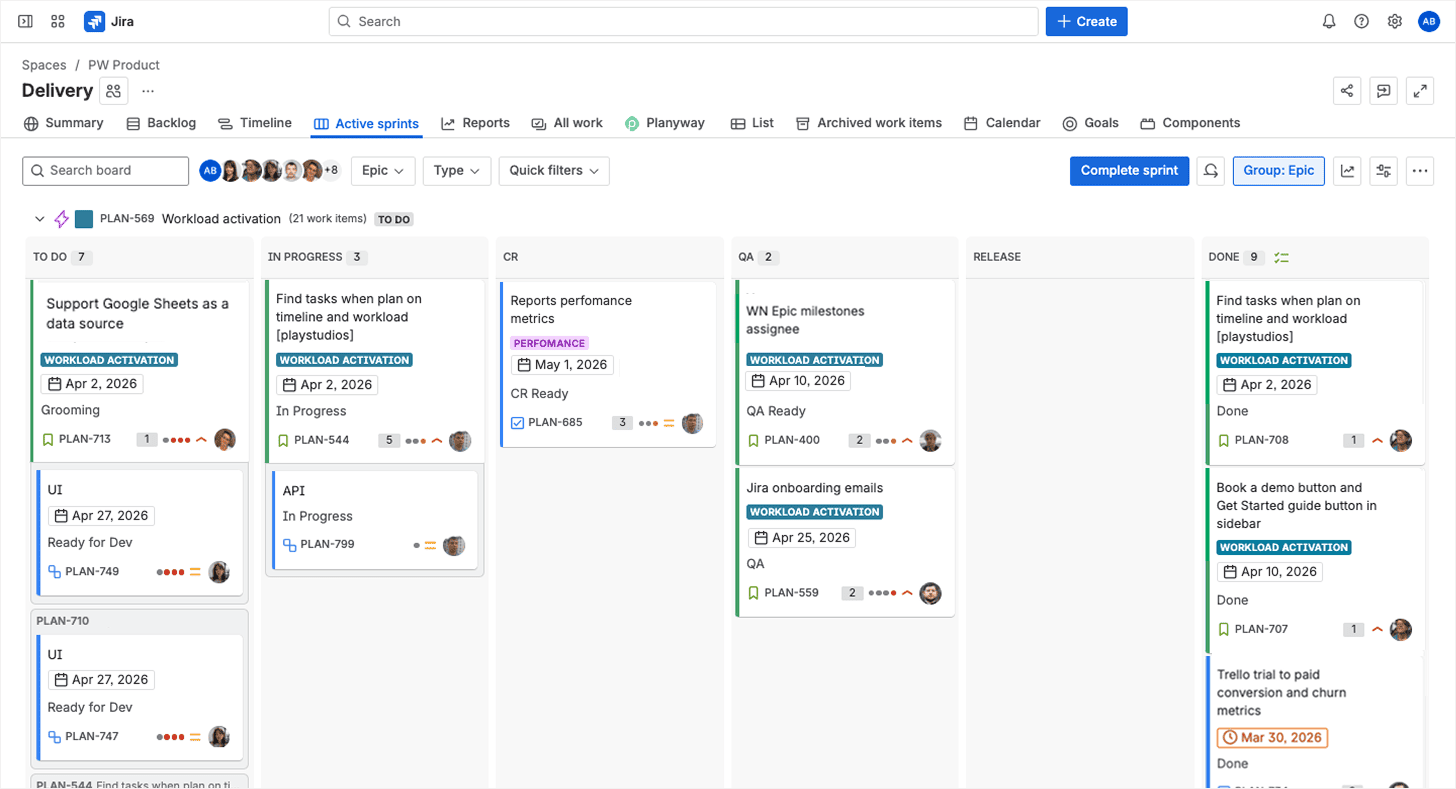
For Scrum teams, that means organising work into time-boxed sprints, planning from a prioritised sprint backlog, and measuring progress through velocity and burndown charts. The Scrum board in Jira shows exactly what's in the current sprint and where each ticket stands.
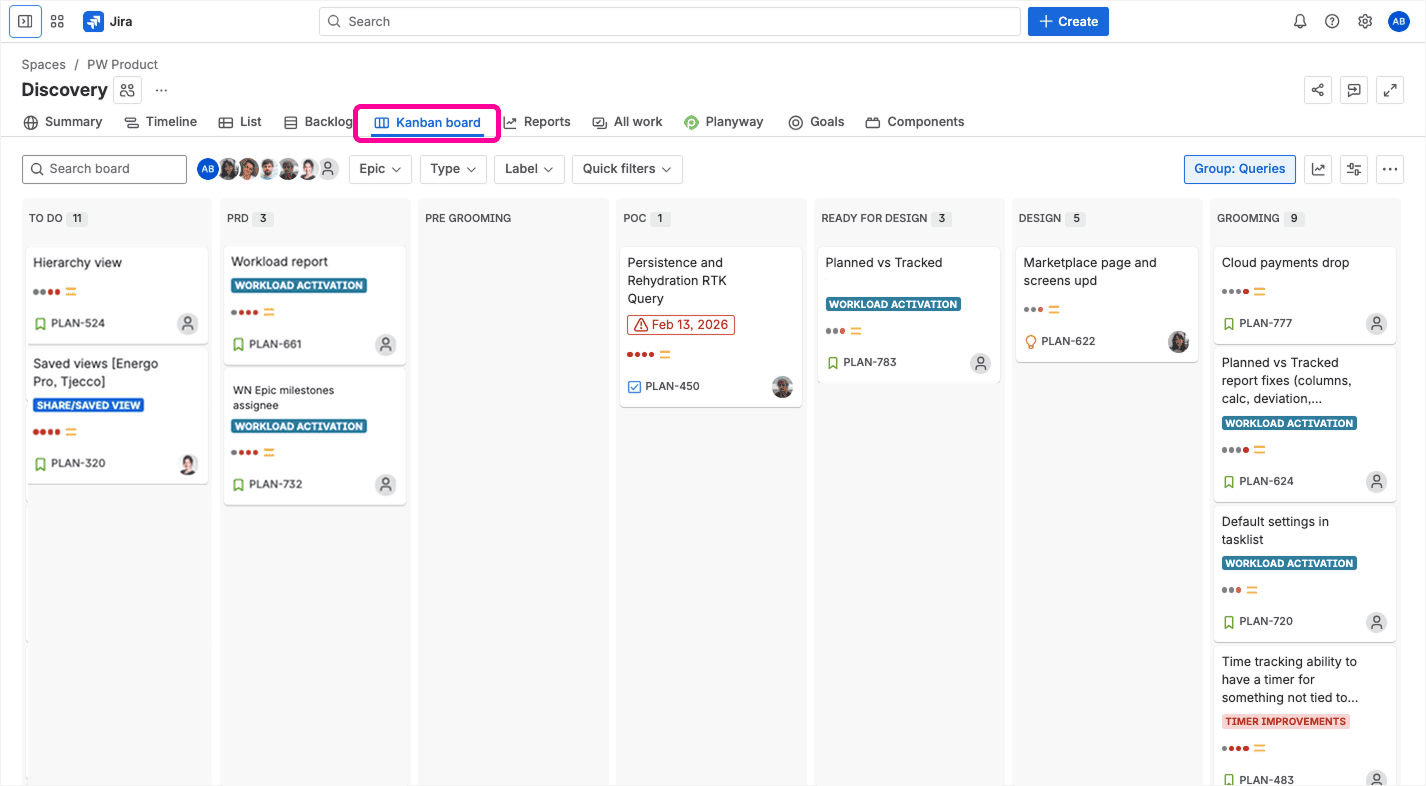
For Kanban teams, there are no sprints. The work flows continuously from a backlog through columns that represent stages of progress. The Kanban board in Jira is designed to help teams identify bottlenecks and keep work-in-progress under control. Unlike the Scrum board, the Kanban board has no concept of a sprint end date. Work just keeps moving steadily.
The choice between Scrum and Kanban depends on how your team delivers work. Both approaches are popular with agile teams building software and sit on the same underlying engine: a structured ticketing system where every unit of work is created, assigned, prioritized, and tracked through a defined workflow. That shared foundation is what makes Jira so configurable — but on the other side, this is also what makes it so easy to over-engineer.
Why project management teams in software development love Jira
We personally run all our projects in Jira. And although it's not the prettiest tool we could choose, it's become the default operating system for how our work moves. There's a simple rationale behind our choice: Jira keeps everyone on the same page without requiring a separate coordination layer.
Here's what Jira actually gets right.
Everyone can see what’s going on in the project
At its core, Jira is a workflow tool and a ticketing system that makes it easy to create, organize, assign, and time-box tasks. Because it’s a structured board where each task is represented as a work item, it gives project managers a bird’s-eye view of their projects and enables them to track progress without chasing teammates for status updates.
Specifically, you can see:
- What each team member is working on. Each ticket has an assignee, and you can filter any board or backlog by person. However, for a cross-project view of individual workload, you'll need Premium Jira Plans (formerly Advanced Roadmaps) or a plugin like Planyway.
- Which tasks are in progress. The board columns reflect your workflow stages in real time. Anything sitting in “In Progress” is visible to the whole team without anyone having to ask.
- Which ones are blocked. You can flag tickets as blocked natively, and Jira's “flag” feature adds a visual marker on the board. For more structured dependency tracking, the “Blocks / Is Blocked By” link types are more reliable (you can find them in the Link option inside any ticket).
Jira works in your process, not next to it
Jira doesn’t force you to adapt your process to fit its structure. A product team shipping features and a marketing team running campaigns have fundamentally different ways of working, definitions of “done,” approval chains, and priorities. When a tool doesn't match how a team actually works, people stop maintaining it. Jira avoids that by letting each team configure its own setup on its own terms.
This is genuinely useful in practice. You can build a process that mirrors exactly how your team moves work from idea to done, enforce rules at key transitions (like requiring a code review before moving to QA), and automate repetitive steps.
Jira software is a go-to for task and issue tracking
This is what Jira was originally built for: task management at scale. Every task, bug, feature request, or support work item gets logged, assigned, prioritized, and tracked through to resolution.
The issue detail view is designed to provide context to anyone who picks up the work and delivers results. You can link a bug to the story that caused it, add a comment with context, attach a design file, or loop in a reviewer. For software development teams managing dozens of parallel workstreams, having everything logged, linked, and searchable in one place is genuinely hard to replicate in lighter tools.
Clear reports that show how the team is performing
Jira ships with a solid set of Agile reports that give you a baseline view of team performance: burndown charts, velocity charts, sprint reports, cumulative flow diagrams for Kanban board teams, and more.

The burndown chart shows sprint progress in real time — whether the team is on pace or falling behind early enough to do something about it. The velocity chart tells you how much work the team typically delivers per sprint, which makes capacity planning for future sprints a lot more grounded than gut feeling.
The sprint report gives you a clean summary of what was completed and what wasn't, which makes retrospectives faster and more focused. And the cumulative flow diagram shows where work tends to pile up (useful for Kanban board teams trying to keep flow steady).
For once, something in Jira that just works without touching the settings. All the reports are built in and update automatically as the team moves work items.
Team discussions happen right inside the task
Every ticket in Jira has a comment thread. You can mention teammates, ask questions, and attach docs. All the context you need to make sense of a task is usually inside the ticket. And stays there forever.
This sounds small, but it matters. Teams that communicate inside work items instead of alongside them build an organic knowledge base over time. That kind of in-context collaboration is what keeps institutional knowledge inside the tool instead of scattering it across inboxes. Onboarding a new engineer becomes significantly faster and easier when the complete history of a feature lives in the same place.
Jira software integrations and custom dashboards
Originally built for bug tracking, Jira software has evolved into a full project management platform. It has been around since 2002 and has over 6,000 apps in the Atlassian Marketplace. Time and issue tracking, advanced reporting, roadmaps, resource planning, testing — whatever Jira doesn't do natively, there's almost certainly a plugin for it.
And because Jira has a large ecosystem of integrations and plugins, you don't have to switch to a different tool when your needs evolve. Instead, you can install plugins on top of Jira and work in an existing environment.
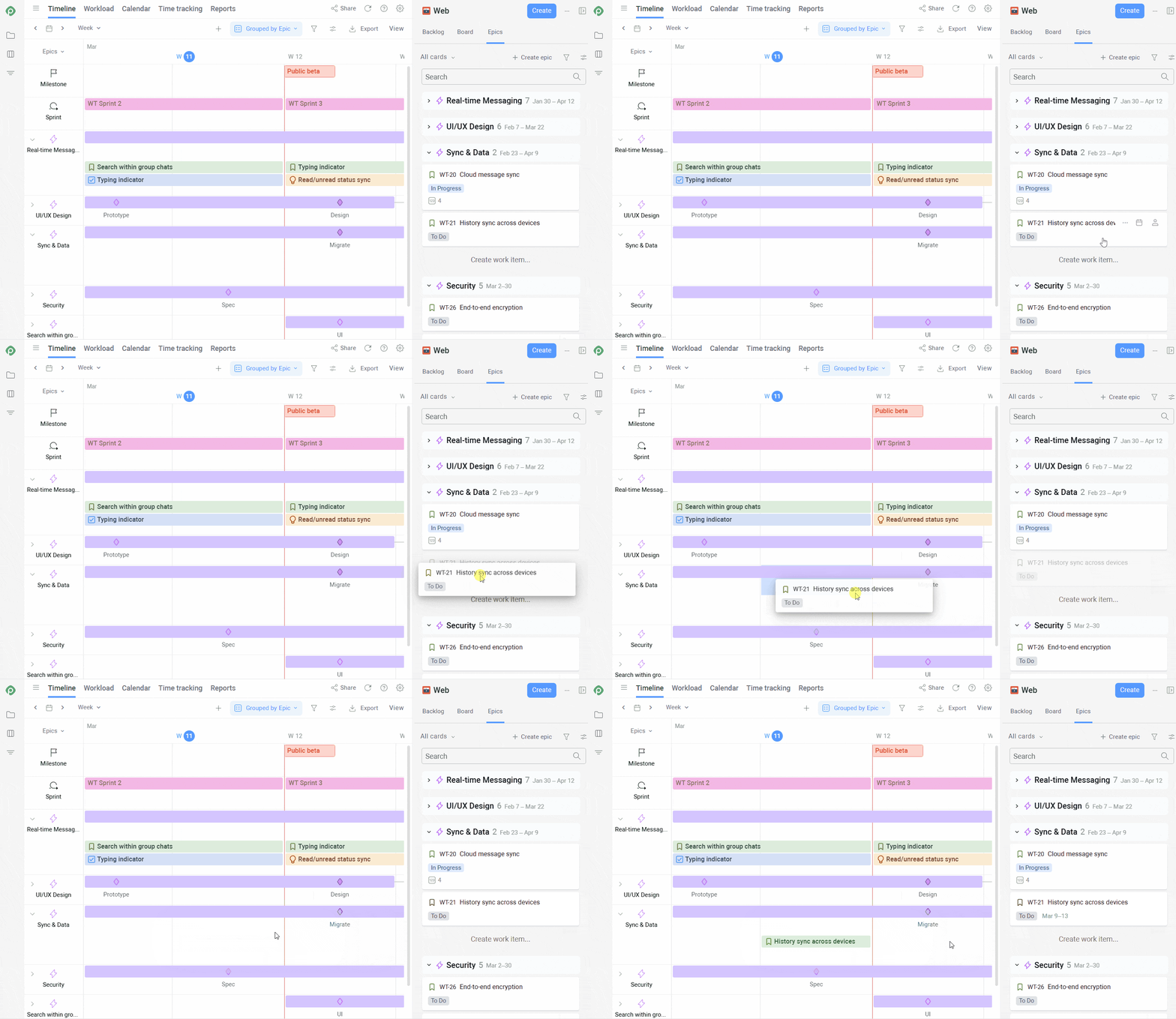
Among other platforms, Jira integrates natively with GitHub, GitLab, Bitbucket, Figma, Slack, and Confluence. The GitHub integration, for instance, allows users to link pull requests, commits, and branches to Jira tickets via ticket keys. This way, project managers can see exactly where a piece of work is in the development cycle without asking anyone.
How to make the most of Jira as a project management tool for your software development projects
Planyway sits on top of Jira, which means we've spent years using it ourselves and thinking carefully about how it works. These are the things we've learned from getting it wrong before getting it right.
Lead with the KISS principle (keep it simple, stupid)
Start with the default workflow. Seriously. The temptation to map every possible state of a ticket into a Jira status is almost always a mistake.
The rule we use: if you can describe your workflow in five statuses, don't use ten. To Do → In Progress → In Review → Blocked → Done covers the majority of software development work, whether you're working from a Scrum board or a Kanban board. Every status you add beyond that is something the team has to think about every time they move a ticket.
The same logic applies to custom fields inside tickets. Adding a field is easy, but getting the team to fill it in consistently is not as easy. Orphaned fields that nobody maintains quietly corrupt your data, your reports, and your team’s efficiency. Before adding anything, ask if this field will actually change how you make decisions. If the answer is “maybe,” the answer is “no”.
Master filters and dashboards
JQL (Jira Query Language) is the single highest-leverage skill for anyone managing projects in Jira. The basics take a few hours to pick up, but once they click, you get a completely different level of visibility.
Here are some queries that are immediately useful:
- Work items that haven't moved in a week. If nobody can explain why, that's a conversation worth having before the sprint review.
updated <= -7d AND status != Done
- Active work items with no owner. Someone needs to claim these:
sprint in openSprints() AND assignee is EMPTY
- Overdue tickets. If this list is longer than 10% of your active backlog, you have a planning problem:
dueDate < now() AND status != Done
Save the queries you use regularly as filters and pin them to a Jira dashboard or your team's Confluence space. Quick filters on the board can surface blocked tickets, work in progress, high-priority items, or unassigned work in one click.
Get to grips with Jira reports
Whether you're using the Scrum board or Kanban board, they cover the basics well, but there are a few things worth knowing before you rely on them:
- The burndown chart doesn't include subtask estimates. If your team breaks work into subtasks and estimates at that level, the chart will look flat.
- Your team’s velocity is calculated in story points from sprints completed over the last three months. Typically, it's six sprints for two-week cadences. Don’t be alarmed if an anomalous sprint makes your velocity number off for the next quarter of planning.
- Reports live in the Reports section, not on dashboards. You can't pin a burndown to your main dashboard in standard Jira. It is possible to build a custom dashboard with gadgets to get something closer to an at-a-glance view, but it takes setup. As an alternative, you can resort to a third-party reporting tool.
Make automation your friend
Jira Automation can eliminate a lot of manual work, and there are automations for almost any use case. When all tickets in an epic are marked Done, Jira can automatically transition the epic and notify the product owner that it's ready for review. When a blocking ticket is resolved, dependent tickets can move back to In Progress without anyone touching them. When a due date passes with a ticket still open, Jira can flag it and surface it in the right filter automatically.
Keep in mind that automations can fail or backfire if not configured properly. Here are a couple of other things to take heed of when working with them:
- Always test with a manual trigger before setting a rule to fire automatically. Otherwise, it may hit hundreds of tickets at once and flood your Slack. Happens to almost everyone at least once, but try to avoid it if you can. If you rename a status or change an issue type, check your existing automations. Rules that reference the old name will silently stop firing.
- If an automation fires unexpectedly or stops working, check the audit log to find out why a rule isn't behaving as expected. It shows exactly what ran, when, and why.
Done right, automation gives your team clear visibility into what's happening. And the less your team has to update tickets by hand, the happier — and more cooperative — they tend to be.
Structure your hierarchy correctly
Jira has a four-level hierarchy: Epic → Story → Task → Subtask. A common mistake is using Task for everything. This collapses the hierarchy and makes epics meaningless as sprint planning units.
A less chaotic way to carve it up:
- Epics are your big deliverables — features or releases that take weeks.
- Stories (aka User Stories) are what actually ship in a sprint. They usually take a few days of work, and the result is visible to the user.
- Tasks are the engineering steps inside a story and are typically only relevant to the project team.
- Subtasks exist for edge cases, like when one story needs to be split between two people.
When epics are well-scoped, the epic burndown becomes useful, telling you where you are in a feature and whether the timeline still holds.
Enforce the “Definition of Done”
One of the most underrated problems in project management is the lack of shared definitions. We often think we're talking about the same thing while meaning completely different things. “Done” is a perfect example: a developer considers the ticket closed when the code is merged, a QA engineer when tests pass. Everyone is right by their own definition. But someone has to own the one that counts for the whole team: write it down, and make sure everyone is reading the same version.
Here's how to implement a shared “Definition of Done” in practice. Set up workflow validators to block a ticket from moving to Done until your conditions are met (a checklist ticked, a comment left, a field filled).
Team-managed vs company-managed projects
When creating a new project in Jira, pick carefully between team-managed and company-managed, because you can’t switch an existing project from one type to the other. Team-managed are quicker to configure and don't require a Jira administrator to get started. The tradeoff is that nothing transfers between projects: no shared workflows or custom fields.
Team-managed is fine for small, isolated teams, but if you have a bigger team, multiple departments, or more than a couple of projects, the more forward-thinking choice is company-managed.
Why Jira alone is not enough to manage projects
Jira tracks everything and does a decent job at showing project progress internally, but it can't tell you what you actually need to know to make planning decisions.
Resource and capacity visibility
According to Runn's 2025 research, only two-thirds of organizations do capacity forecasting regularly, and the tools they use play a role in that.
Assigned doesn't mean available, but Jira doesn't know the difference. The sprint planning view in native Jira shows you a list of tickets and story points — but if your engineer is overloaded or off to Mallorca next week, you won't see it. So when you commit to a sprint, you're essentially planning blind: your team’s capacity is invisible.
Most teams work around this limitation with the spreadsheet that refuses to die, living next to their tracking tools and updated only when someone remembers.
Also, even with Jira Premium, you have capacity features that only work at the team level. You can’t see which team members carry most of the load and which still have spare capacity.
Limited planning layer
Jira's timeline view works for one project. There's no native view for managing multiple projects side by side, with their start and end dates, shared people, and competing deadlines.
For a Gantt across all projects with dependencies and milestones, you need either Jira Advanced Roadmaps (now called Plans) or a dedicated plugin.
Reporting and analytics limitations
One Jira admin we knew was convinced they'd quickly replace their team's Excel reports with a proper Jira dashboard. Two months later, the team was still exporting to Excel. It's not an isolated case: the built-in charts work fine only if the audience lives in Jira. Subtask and custom field estimates are invisible to the charts, and nothing exports in a format most stakeholders would want to use.
The same problem occurs with managing dependencies. A project manager needs a picture showing blockers that put a release at risk — and won't get it without Premium Plans or a plugin. Native Jira lets you link tickets with "Blocks" or "Is Blocked By", but it stays inside the ticket. A dependency between two epics in different projects is invisible by default, and even with a custom view, you won't see which tasks are holding up the release or where the team is stretched thin.
How to bypass the limitations of native Jira project management
Upgrading to Premium adds a cross-project timeline and dependency visualization. Both actually work, but you still won't see who specifically is overloaded, and you still can't share a report with someone who doesn't use Jira. It also isn't cheap — especially given that you're paying for the whole team, not just the people who actually need those extra features.
If paying for a whole tier to fix three specific problems doesn't make sense for your team, there's a more targeted option. Planyway is a single plugin at a single price that covers the gaps that matter most for day-to-day project management: resource planning, roadmaps, time tracking, and portfolio management.
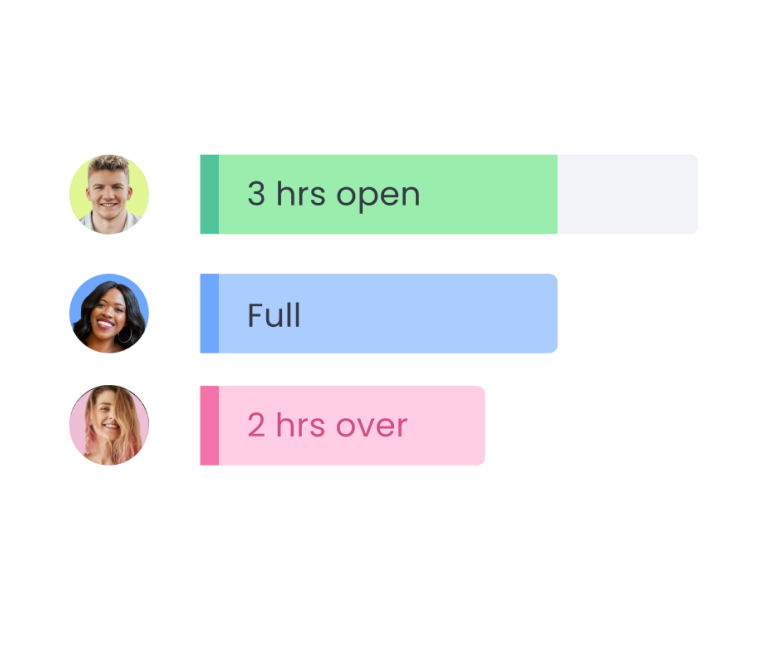
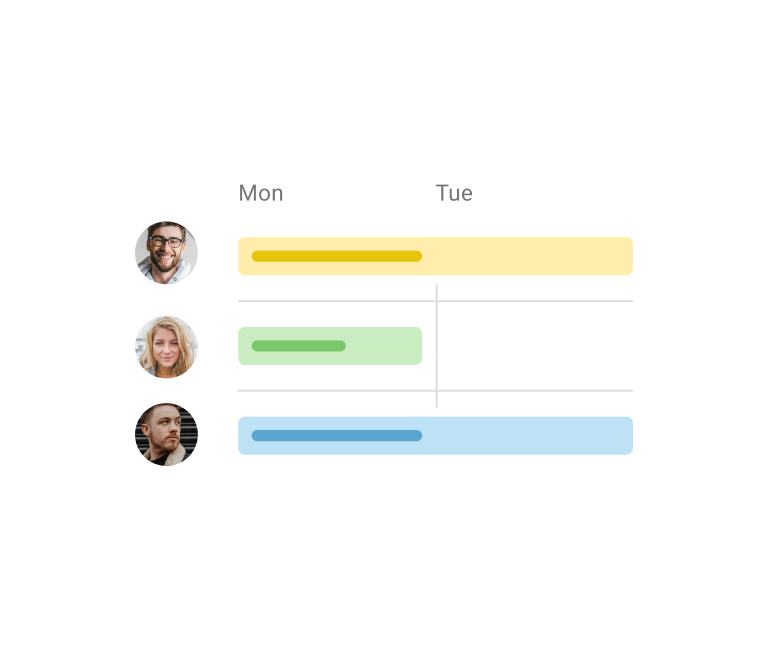
- Resource planning: Planyway allows you to see each person's daily load across all projects, colour-coded so overloaded and underutilised team members are immediately visible. You can set individual working hours and exclude holidays and days off to plan against real availability.

- Project roadmaps: You can break down complex goals into milestones and manageable tasks, set priorities, track progress across sprints and releases, and share the roadmap directly with stakeholders without rebuilding it in a deck.

Planyway timeline view for planning and tracking Jira tasks visually
- Time tracking: Planyway enables you to log time directly against Jira tickets, compare planned vs actual hours, and use the data to make future estimates more accurate.

Planyway time tracking view comparing planned vs actual hours in Jira.
- Portfolio management: Planyway delivers a bird's-eye view across multiple Jira projects in one place, with dependencies and milestones visible.

Planyway portfolio view showing multiple Jira projects in one place
Making Jira work for you
Jira can be an excellent foundation for project management if the team understands its limits and works with them. To get the most out of it, keep it simple, learn JQL early, maintain a clean workflow, and fill the gaps with focused tools.
If you want a single view of who's working on what across all projects, with capacity planning and a timeline you can actually share with stakeholders, it takes about five minutes to connect Planyway to your Jira instance.


FAQ
Jira Software is an agile project management tool and project management software built around Agile principles. It supports both Scrum board and Kanban board workflows. But the very fact that it's an agile tool doesn't mean it enforces agile practices — it's a framework, not a methodology. Teams that use Jira without a clear process often end up with an excessively complex ticket-tracking system that looks agile on the surface but doesn't deliver the benefits.
The classical approach to the project life cycle includes five phases: initiation, planning, execution, monitoring and controlling, and closure. Jira supports all of these, from backlog grooming in the planning phase to boards and sprint reports during execution and monitoring.
The basics are easy to get along with. Most people can learn how to create tickets, move them through a board, and run a sprint in a day or two. The depth shows up later, when you hit a specific pain point and realise there's a whole layer you didn't know existed. JQL, automation, and workflow configuration are harder to maintain, but none of them are out of reach. You can learn it when you need it.